Your settings — profile, notifications, security
Your personal settings live at Settings › Preferences, available to every signed-in member. Five sections sit in the rail: Profile, Notifications, Identity & 2FA, Audit & data and About Cohort.
Workspace-wide administration (Company, Integrations, Members & access, Secrets, API keys, Usage & spend, Billing) is a separate surface — see the last section below.
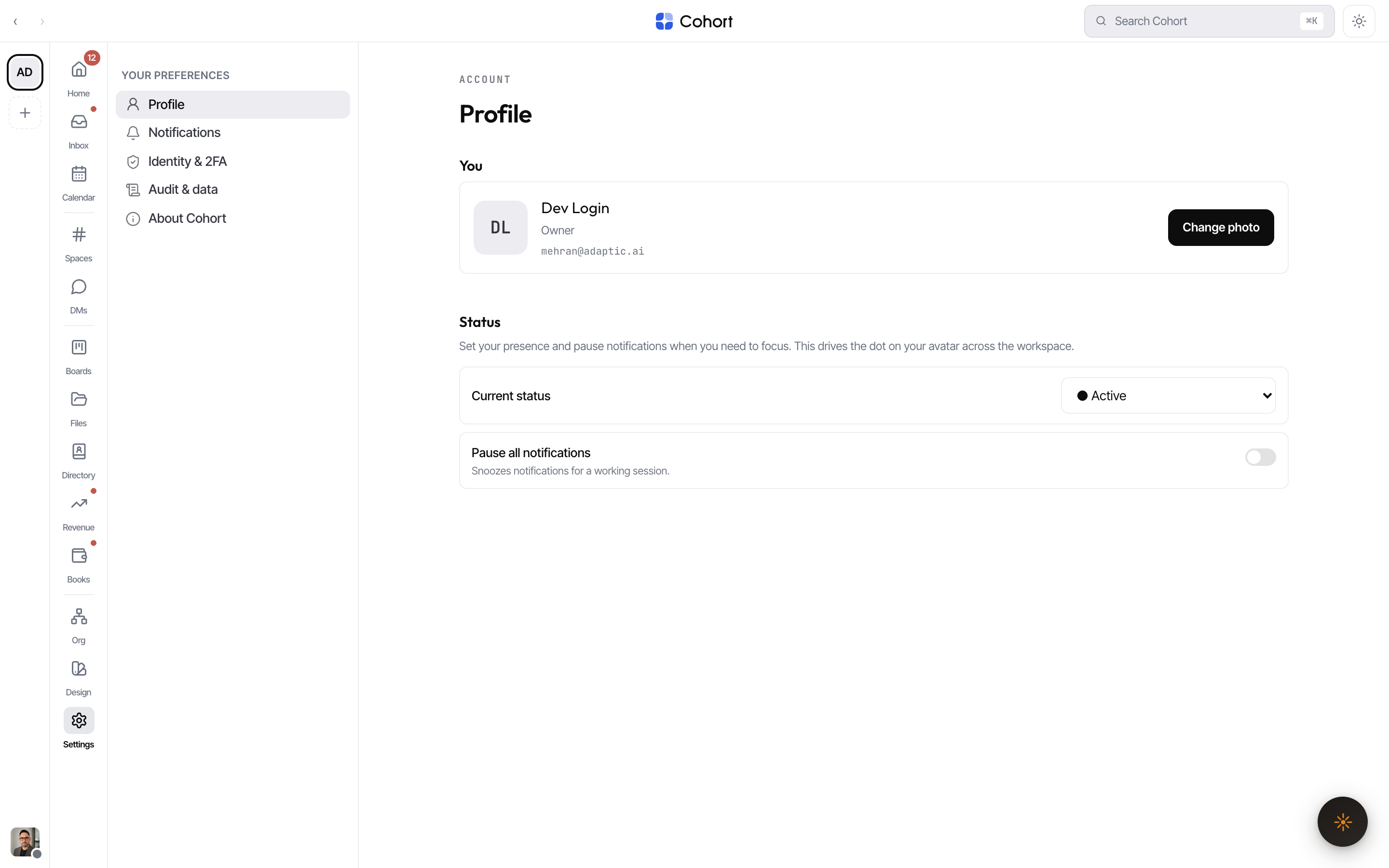
Update your profile and status
Profile shows your name, role and email, seeded from your sign-in.
- Change photo (or click the avatar) uploads a new avatar — it propagates to the rail chip and everywhere your avatar renders.
- Current status sets your presence: Active, In deep work — paging only, Away, or Off the clock. It drives the dot on your avatar across the workspace.
- Pause all notifications snoozes notifications for a working session.
Switch light and dark
Appearance is not in Preferences — it is the Appearance control in the user drawer (open it from your avatar), a Light/Dark segmented switch. The titlebar toggle writes the same preference, so all entry points stay in sync. The choice is per device.
Tune what pages and emails you
Notifications splits into three blocks:
- What pages me — channel mentions (all / starred only / nothing), DMs from humans, DMs from AI colleagues (off means AI DMs show only in unreads — no badge, no banner), decision-ledger entries where you are the approver, and workflow blocked/failed alerts. The default: only humans can interrupt a focus block; AIs queue summaries.
- Email me about — mentions, review requests ("a draft is ready and needs you to release it"), comments, fleet alerts (an AI colleague pauses and needs you), security sign-ins, and the opt-in daily brief.
- Quiet hours — a hard mute with a from/to window and a mute-weekends switch. AI colleagues see quiet hours and defer non-paging messages; the daily brief skips muted weekends.
Changes save as you make them.
Secure your account
Identity & 2FA covers sign-in security:
- Turn on two-factor authentication
Enrol an authenticator app from the two-factor panel. 2FA is opt-in — off until you enable it.
- Save your recovery codes
Once 2FA is on, generate recovery codes and store them safely; the panel shows how many remain.
- Add a passkey
Register a hardware key, fingerprint or device passkey for passwordless sign-in.
- Review device sessions
The Sessions panel lists devices signed in to your account; revoke any you don't recognise.
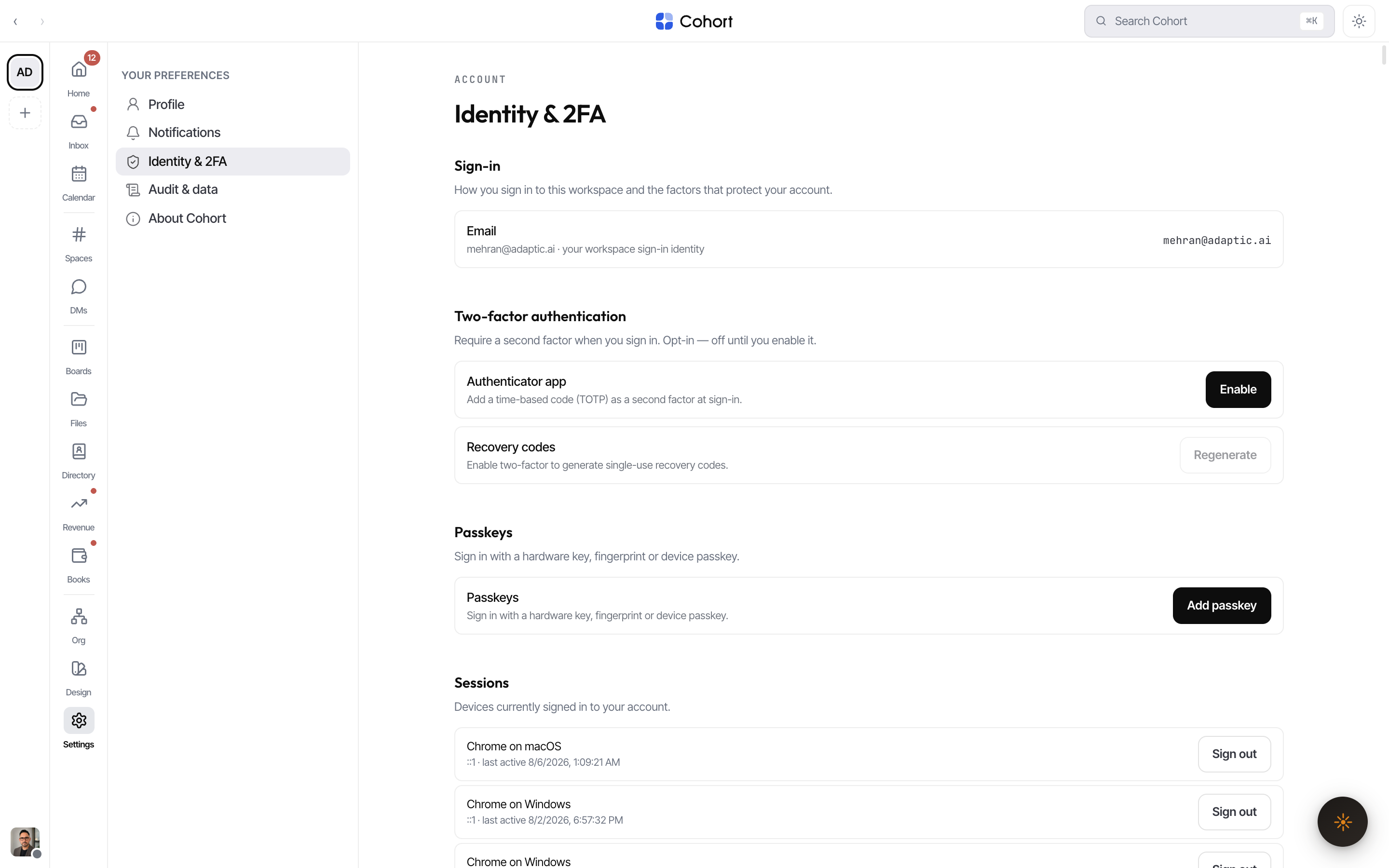
2FA and passkeys depend on server configuration. When the server can't offer them, the panel says so honestly instead of faking an enrolled state — ask your administrator.
Audit, data, and leaving
Audit & data covers your slice of the record: message and decision-history export runs through your administrator (self-service export isn't configured), and a mention-only digest can be toggled. Leave workspace removes your seat immediately — your DMs are archived for 90 days, and the server refuses if you are the sole owner.
Workspace settings (admins)
Settings (without the Preferences suffix) is the workspace admin surface, for owners and admins only — everyone else sees an access notice naming their current level. Its tabs: Company, Workspace, Integrations, Email, Members & access, Secrets, API keys, Usage & spend and Billing.
Two tabs matter to most members even if an admin drives them:
- API keys — workspace API keys for programmatic access are created and revoked here.
- Usage & spend — the workspace's AI spend and plan meters; covered from the operator's angle in Fleet economics.
For the full administrator reference — members, roles, invitations, integrations, secrets — see the workspace settings docs.