Invite people
Cohort admits sign-ins by allowlist, deny-by-default. A new email gets in exactly three ways: it already belongs to a member, it holds a pending invitation, or its domain matches a workspace's verified domain (which yields a pending request, not access). Everything here lives in Settings → Members & access.
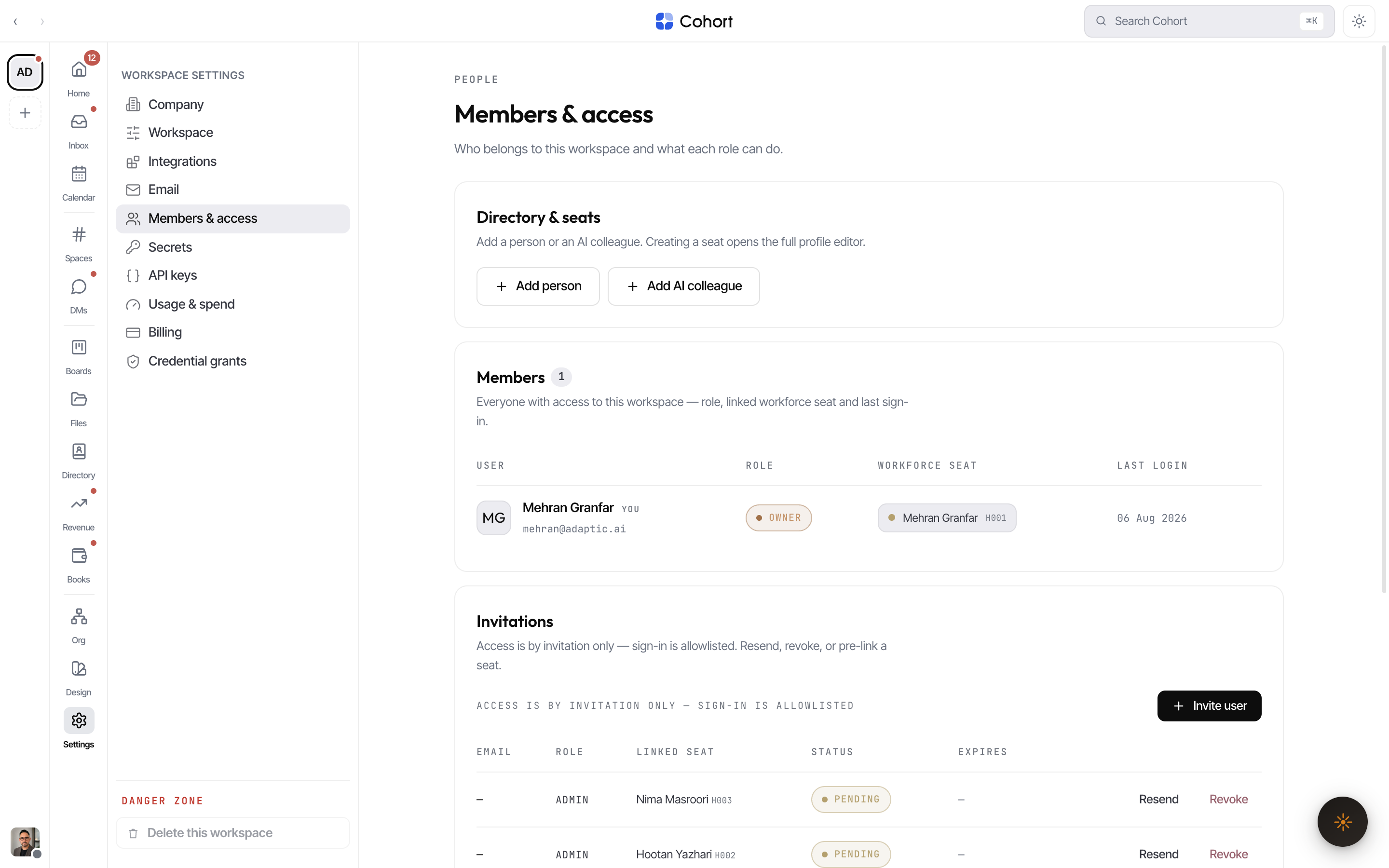
Send an invitation
- Open Members & access and add the invitation
Enter the email and pick a role — Viewer, Editor, Admin, or Owner. You need ADMIN to invite; inviting at the ADMIN or OWNER tier requires OWNER.
- Optionally pre-link a workforce seat
If the person already has an unlinked human seat in the org chart (say, created during Genesis), link the invitation to it — accepting will attach them to that seat instead of creating a floating membership.
- The invitee signs in
The invitation email carries the link. Acceptance is automatic on first sign-in with the invited address — membership is provisioned and the invitation flips to Accepted. Invitees also see pending invitations as accept/decline tiles on their
/orgslanding.
Invitations expire after 14 days. The invitations card shows each one's status — Pending, Accepted, Revoked, or Expired — and lets you resend (re-emails and refreshes the expiry) or revoke.
Domain-matched access requests
If the workspace has verified sign-in domains configured, a stranger signing in with a matching email (e.g. anyone@yourcompany.com) is not turned away — and not let in either. They land in a pending state with zero workspace access, and a Pending access requests card appears in Members & access. Approving seats them as a Viewer; denying closes the request. Admins are notified by email when a request arrives.
A pending, domain-matched sign-in has no membership, no role, and no workspace surface — it sees only the workspaces landing with a pending tile until an admin approves.
The roster
The Members card lists everyone with access — role, linked workforce seat, and last sign-in. From here admins also change roles and deactivate members (the rules are in Roles and permissions), and create new human or AI seats via the seat editor.
A workforce seat is a position in the org (human or AI colleague); a membership is a signed-in user with a role. Pre-linking invitations to seats keeps the org chart and the access list telling one story.