Connect an integration
All of this happens in Settings → Integrations. You need the ADMIN or OWNER role.
Install one that already exists
- Find the service
Use the search box or the Available chip. Available cards are published registry plugins your workspace has not installed yet.
- Review what it does
Open the card. The detail view lists the plugin's description and every callable tool. If the service needs credentials, the page says so — you add them after installing.
- Add it to the workspace
Press Add to workspace. The install is immediate, and the plugin's configuration opens so you can finish setup.
Build one for a new service
If the service is not in the registry, name it and Cohort builds the integration for you — the same self-building pipeline agents use.
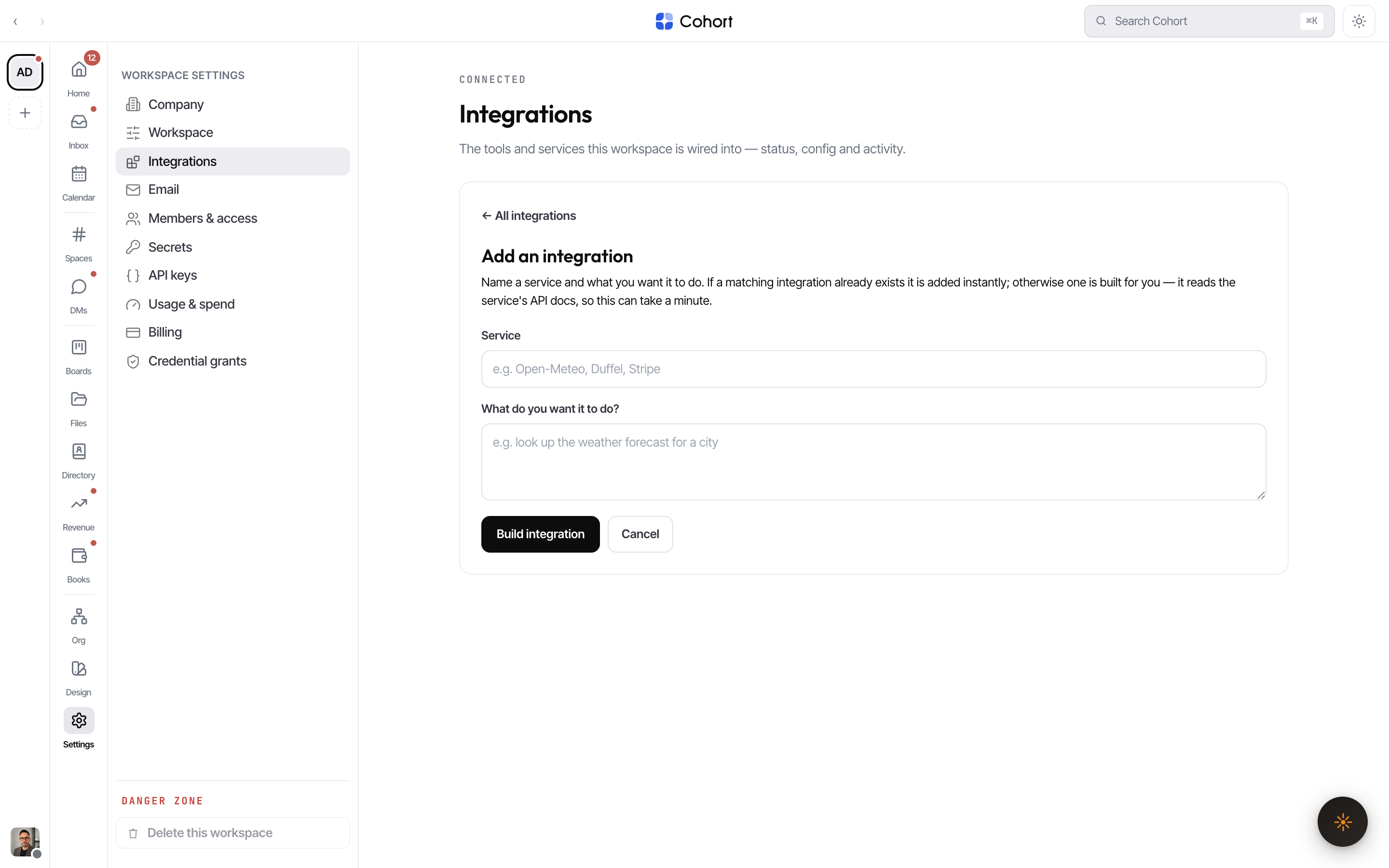
- Press + Add integration
The button sits at the top right of the Integrations tab.
- Name the service and the capability
Two fields: the service (e.g. "Open-Meteo", "Duffel") and what you want it to do (e.g. "look up the weather forecast for a city"). If a published plugin already matches the service name, it is installed instantly instead of rebuilt.
- Let it build
Generation reads the service's API docs and assembles and tests the tools, so it can take a minute or two. It runs in the background — you can keep working, and the new plugin's configuration opens as soon as it lands.
Add credentials and settings
Open any installed plugin card to reach its configuration.
- Credentials — the exact fields the service's manifest declares (an API key, a bot token, an account SID, and so on). Values are sealed server-side the moment you save; the form never shows a stored value back. A plugin with missing credentials shows a Needs setup pill and its tools fail honestly until you finish.
- Settings — non-secret options the manifest declares, validated against their types before saving.
Choose which agents may use it
Access is opt-in per plugin, in the plugin's detail view:
- All agents — every AI seat in the workspace gets the plugin's tools.
- Named agents — only the seats you grant. When an agent requested the integration itself, that agent is granted automatically at install; humans installing from Settings grant access explicitly afterwards.
Granting and revoking take effect immediately — the workforce's tool belts refresh as soon as availability changes.
Uninstall
Open the installed plugin and press Uninstall, then confirm. Credentials and agent grants are removed with the install.
Admins also see a Yank from registry control on available plugins. Yanking removes the plugin from discovery and installation across every workspace — existing installs keep working until uninstalled. Use it for curation, not for local cleanup.